Your training in Vidext
Where your courses are, what a module is, and where to ask questions.
Someone at your organization gave you training in Vidext. This guide shows where to find it and how to work through it. You don't need to set anything up.
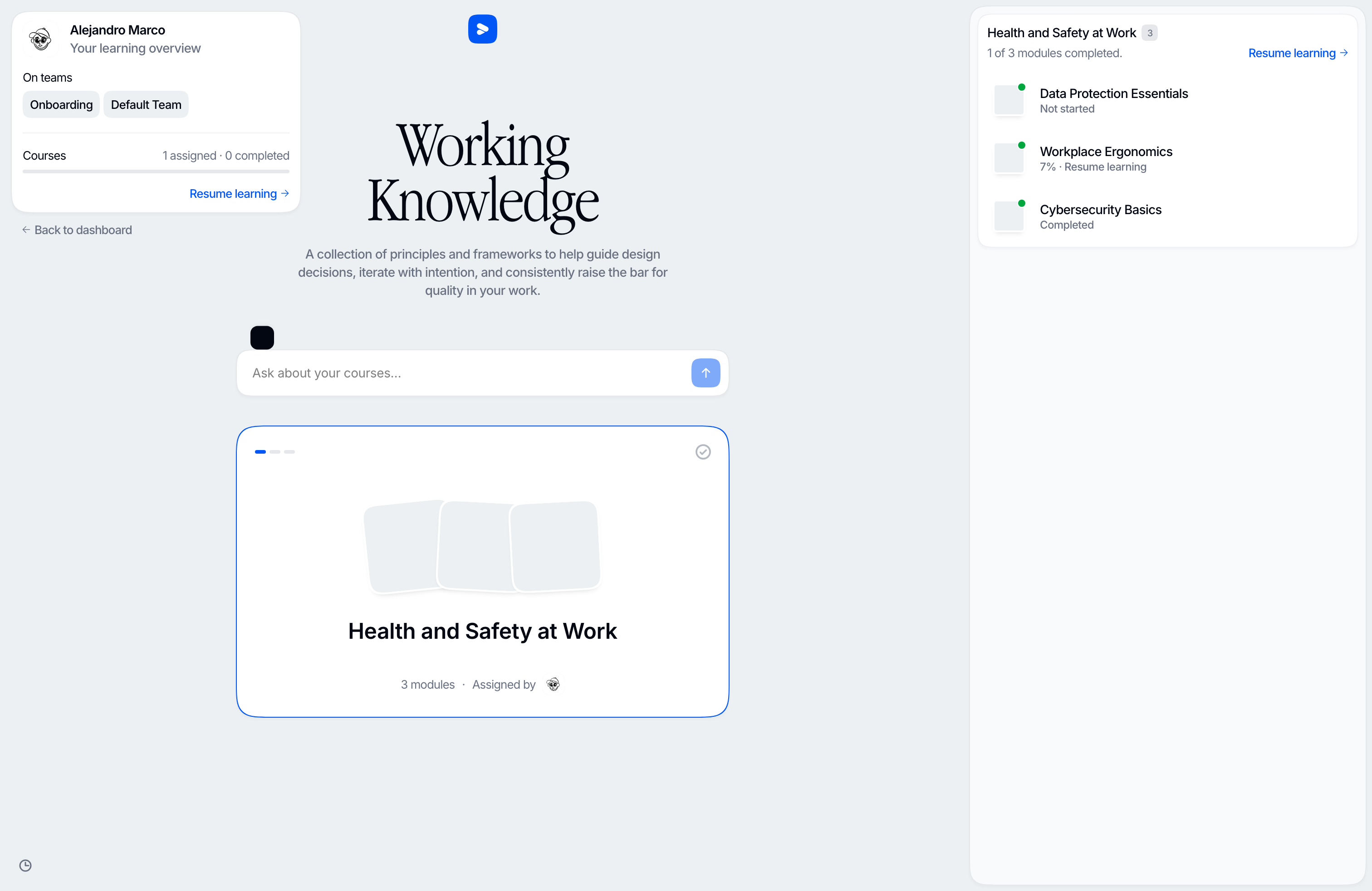
Where your courses are
Your learning home lists every course you've been given.
- Courses reach you through the teams you belong to. You don't sign up for them yourself.
- A course appears once your organization makes it available. You usually get an email when a course is assigned to you.
- If none of a course's modules can be opened right now, the course leaves your list for a while. It comes back, with your progress, as soon as one of them can.
- If the page says No courses yet, nothing has been assigned to you so far.
Your learning overview counts your courses: how many you have and how many you've completed. Its Resume learning button opens the module you were last in, at the point you left. If you finished that module, it opens your next unfinished one.
A course's panel
Select a course to open its panel. It lists the course's modules in order. Each one says Not started, shows a percentage with Resume learning, or says Completed.
The panel can also show:
- Play course intro: plays the course's short spoken introduction again, if it has one.
- Content language: if the course is available in more than one language. See Your progress.
- Download certificate: once you've been given a certificate for this course. See Your progress.
If the panel says No live modules are available., none of the course's modules can be opened right now.
What a module is
A module is a short lesson you take at your own pace. It's not a video you sit through: it's a series of scenes, grouped into chapters. A voice explains each scene while its content appears on screen. In some scenes, a presenter speaks to you.
- A module starts with a short spoken introduction to its chapters and ends with a recap.
- Some scenes ask you questions. These are checks: you answer before you move on. See Checks.
- Some scenes are a video, or an activity you do yourself.
You can pause, go back, change the speed, and turn subtitles on or off. See Taking a module.
Two places to ask questions
There are two assistants, and they know different things.
| Where | What it's for |
|---|---|
| The Ask about your courses… box, on your learning home | Everything assigned to you: what to do next, which course covers a topic, what a module says. It can also search the public web when you ask it to. |
| The tutor, inside a module | The module you're in and the rest of its course |
Both can explain how Vidext works, using these help pages. Both reply in the language you write in, and neither will give you the answer to a check. Neither is available while you're taking a course in a translated language. See Asking questions.
Next
Last updated on