Quickstart
Go from material you already have to a course your teams can take, built with Vidext's agents and published by you.
This guide takes you from nothing to a published course, the first time you use Vidext. You will open the chat, where you tell Vidext's agents what you want to teach. The agents are AI agents that research your material, plan the course with you, write each module and build it. You approve each step, look at the result, and decide when learners get it. No instructional-design experience is needed.
Before you start
- A Vidext account and an organization. The organization is created the first time you sign in. See Set up your organization.
- The admin or member role in that organization. Only admins and members can open the chat.
- Some material: a PDF, a slide deck, a Word document, a video, or a YouTube link. One good document is enough for a first course.
- At least one team with people in it, to publish the course to. See Teams and assignment.
Build and publish your first course
Open the chat
The chat is your Home: choose Home in the sidebar, or open the chat directly. Create module, at the top right of the Modules and courses page under Content, opens it too.
The chat opens on an empty field that asks What would you like to teach today?
Attach your material and say what it is for
Attach your files, or drag them onto the page. Then write one or two sentences: who the training is for and what they should be able to do afterwards. Send it. Your first message starts a new conversation, which takes a moment to get ready. See Adding your sources for formats and limits.
Answer the agents' questions
The agents read your material and first ask what learners must be able to explain, identify, or choose at the end. While they research what your material leaves out, they ask a few more questions: who the learners are, how much time they have, and whether to check understanding with quizzes.
Each question comes with suggested answers. Pick one, type your own, or say "go with your suggestions" to accept them all.
Approve the course brief
The agents write a course brief: a short summary of who the course is for, what they will learn, and how long it takes. It appears as a card next to their reply; Review brief opens it. You see the goal and who the course is for, then its format once the brief settles it, with the full brief below.
When the agents ask what to do next, choose to approve the brief and create the structure, or ask for changes first.
Approve the structure
The agents propose the modules of the course. A module is one short interactive video lesson: narrated screens, sometimes a presenter, and questions that check understanding. Then they offer three choices:
- build the first module (recommended), so you can check one before the rest are written;
- build all the modules;
- change the structure.
A course with a single module offers two: build it, or change the structure. Once the first module is ready, the agents offer to build the rest of the course. See Plan a course.
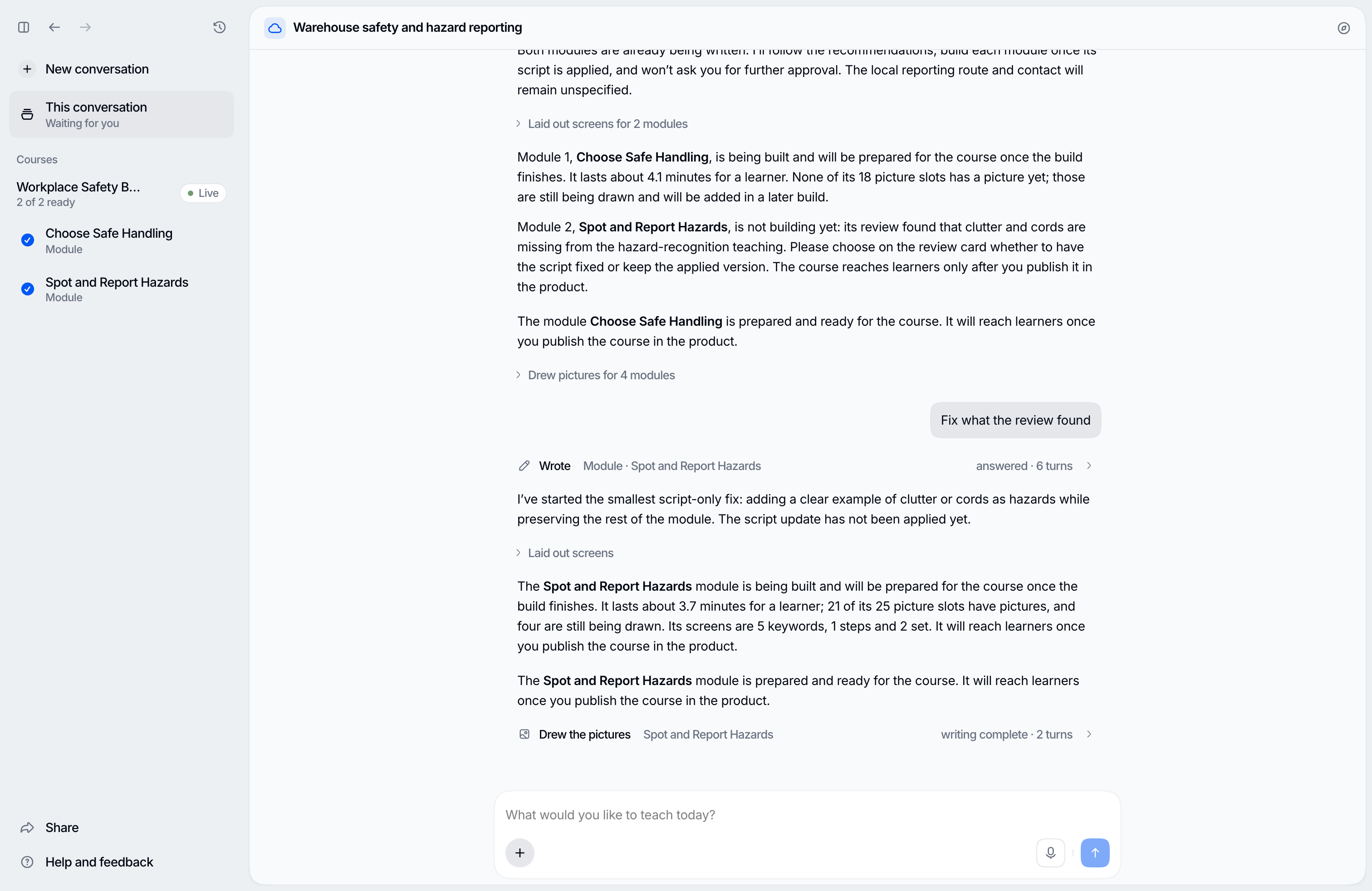
Let the modules build
For each module, the agents write a plan and a script (the words and screens of the module), review it, record the narration, and build the module. Pictures for its screens are drawn along the way. The list beside the conversation shows where each module is.
The agents only stop to ask when a module needs you: when a script's review found a problem that needs your decision, or when the course needs a document only your organization has.
Once a module's build finishes, and any presenter video in it has rendered, it is Built: ready for its course, and seen by no learner yet.
Look at a module in the studio
In the list beside the conversation, open the course under Courses and choose a module. It opens in the studio, the panel where you watch and adjust a module. Preview plays the built module as a learner will see it.
To change something, type over a text on the stage, or ask for the change in the conversation. When the script is right, choose Build again on the module line, on top of the message field of the module's conversation beside the studio, to build the module again from it. See The studio.
Assign a team and publish the course
When modules are built, a strip above the message field says how many are ready and offers Publish course. It opens a summary of what goes live, what stays hidden, and who gets it.
A course needs at least one team. If it has none, choose Assign teams. An organization admin can do this, and so can an admin of one of the course's teams. Then publish.
See where learners find it
Publishing enrolls everyone on the course's teams, and the people enrolled for the first time get an email. Learners find the course on their learning home. After publishing, View as learner shows you the course the way they see it, and Copy course link gives you a link to share.
To see who has started and finished, see Learner progress and certificates.
Building never publishes
The agents build modules; they never publish them. Learners see the course only after you publish it, and later changes reach them only when you publish an update. See Draft, built, and live.
Next steps
Last updated on