My learning and deadlines
Every course you have in one list, which ones are required and by when, and the calendar of your deadlines.
Home shows only what's most urgent. My learning has every course you've been given, finished ones included. Use it to find a course, see what is due when, or download a certificate.
Required and optional
Your organization decides, for each course, whether it's required:
- A required course has a deadline. Depending on the course, it's a number of days from the day you got it, or one date for everyone. If your organization changes the rule, your deadline changes with it.
- An optional course has no deadline. Take it whenever you like.
Wherever a required course appears, its deadline appears with it: Due and the day, or how many days late you are once it has passed. A deadline in the next week, and one that has passed, stand out. Once you finish a course, its deadline no longer applies. If a module is added to it later, you have that module still to do, by your deadline while it hasn't passed, but you're never late because of it.
Vidext also reminds you of a required course you haven't finished, in your notifications and by email: three days before it's due, on its last day, and the day after it has passed. If you haven't started a course you were given, required or optional, it reminds you to start it 3 and 7 days after you got it, then tells you once that it stops. To stop them, turn off Deadlines in your notification preferences.
If you think a deadline is wrong, ask the person who assigned you the course.
The list
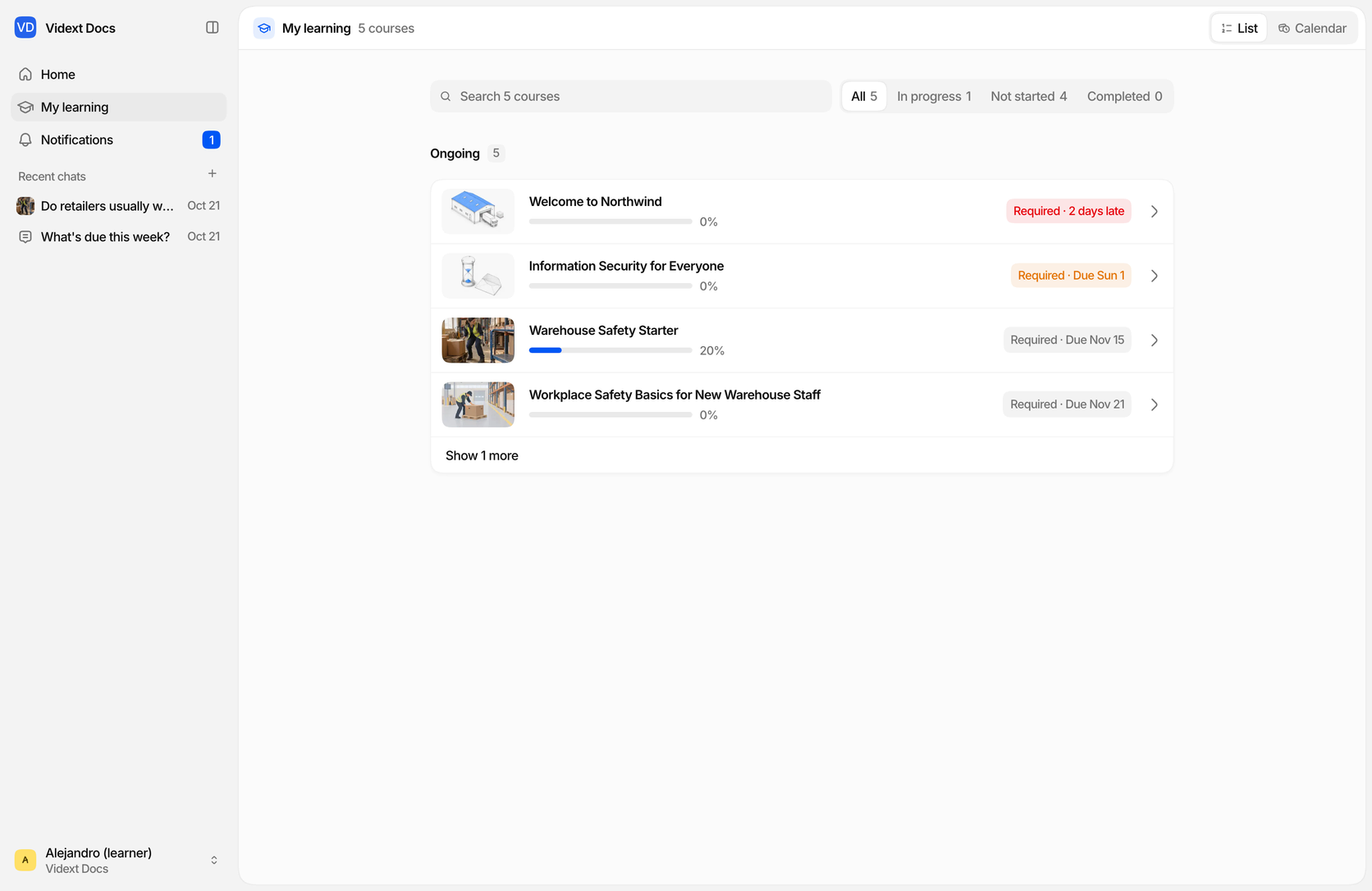
The list is the view My learning opens in.
- Search finds a course by its name.
- The tabs All, In progress, Not started and Completed narrow the list, each with how many courses it holds.
- Ongoing lists the courses you haven't finished, required ones first by deadline, then optional ones. Each row shows how far you got and whether the course is required, and by when, or optional.
- Completed lists the courses you've finished, with the day you finished each. A course that gave you a certificate has a Certificate button that downloads it.
Each section shows four courses; Show more shows the rest. Select a row to open the course's page.
The calendar
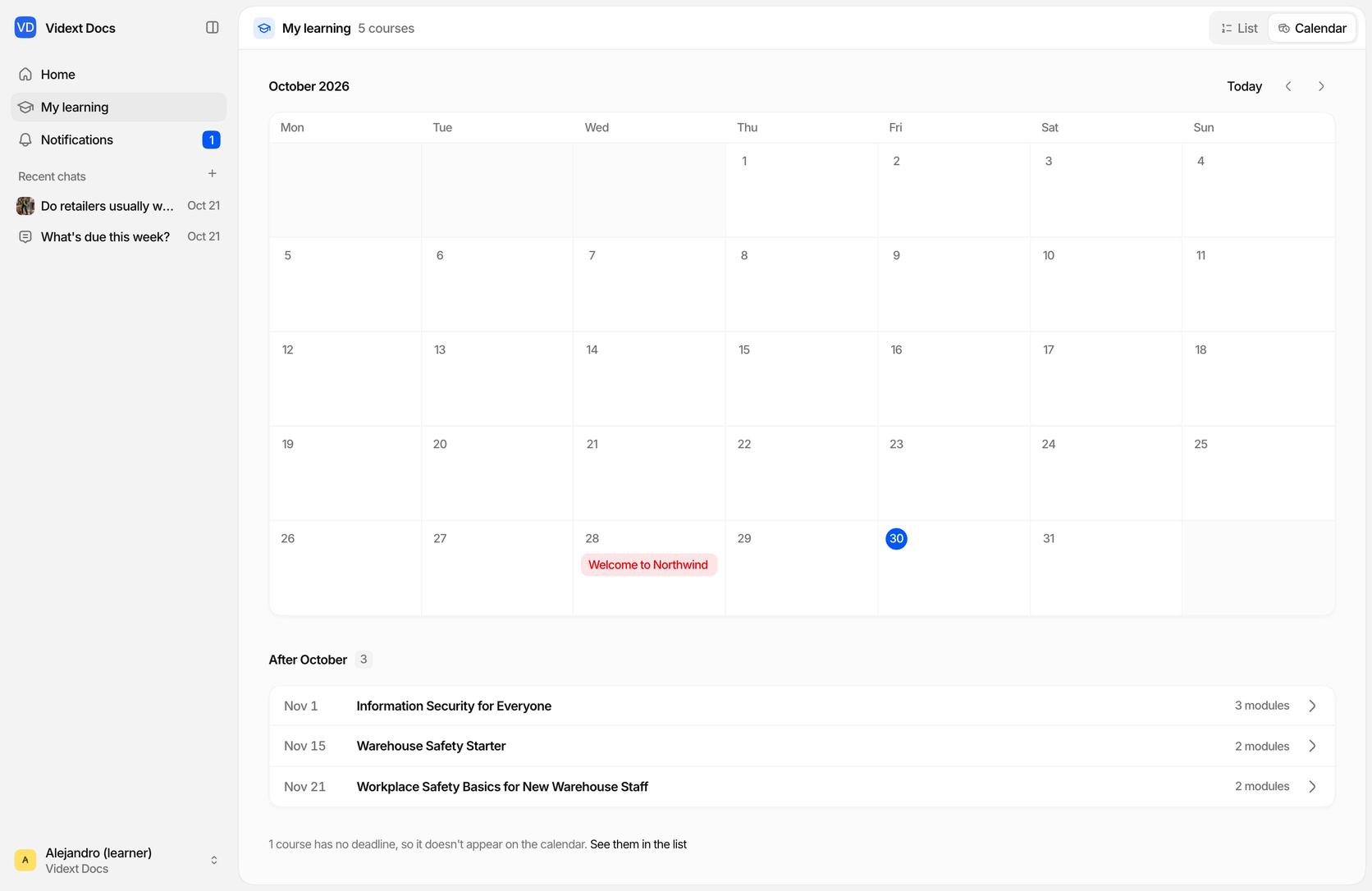
Calendar, at the top of the page, shows your deadlines on a month. Each required course you haven't finished sits on the day it's due; move between months with the arrows, and Today brings you back to this month. Deadlines later than the month you're looking at are listed under it, under After and the month's name.
Optional courses have no deadline, so they never appear on the calendar. A line under it says how many there are, and leads back to the list.
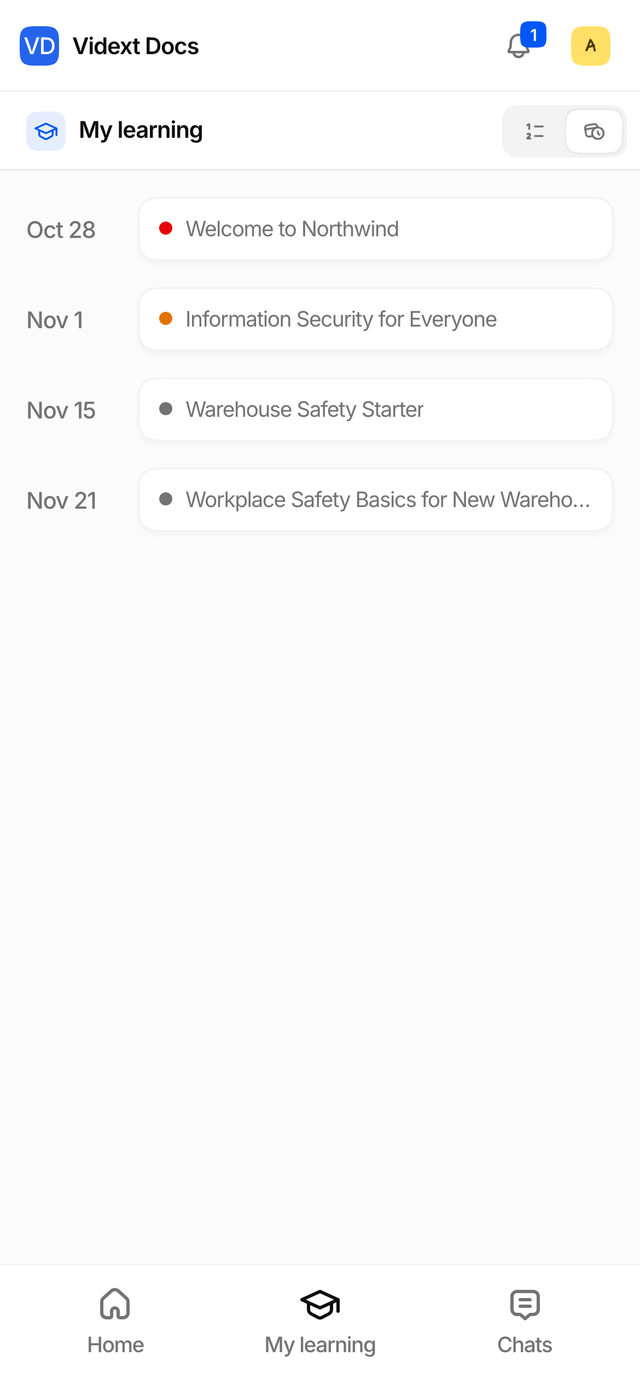
On a phone, the calendar is an agenda: one row per day that has something due, soonest first.
Asking about your deadlines
You can also ask the learning assistant, for example What's due this week? or What's overdue?. It answers from your courses and gives each deadline exactly as Vidext has it. See Asking questions.