Find and organize courses
Search the Courses library, filter it by owner and team, and see who answers for each course.
Use this page when the library holds more courses than fit on one screen, or when several people build courses and you need to see which are yours.
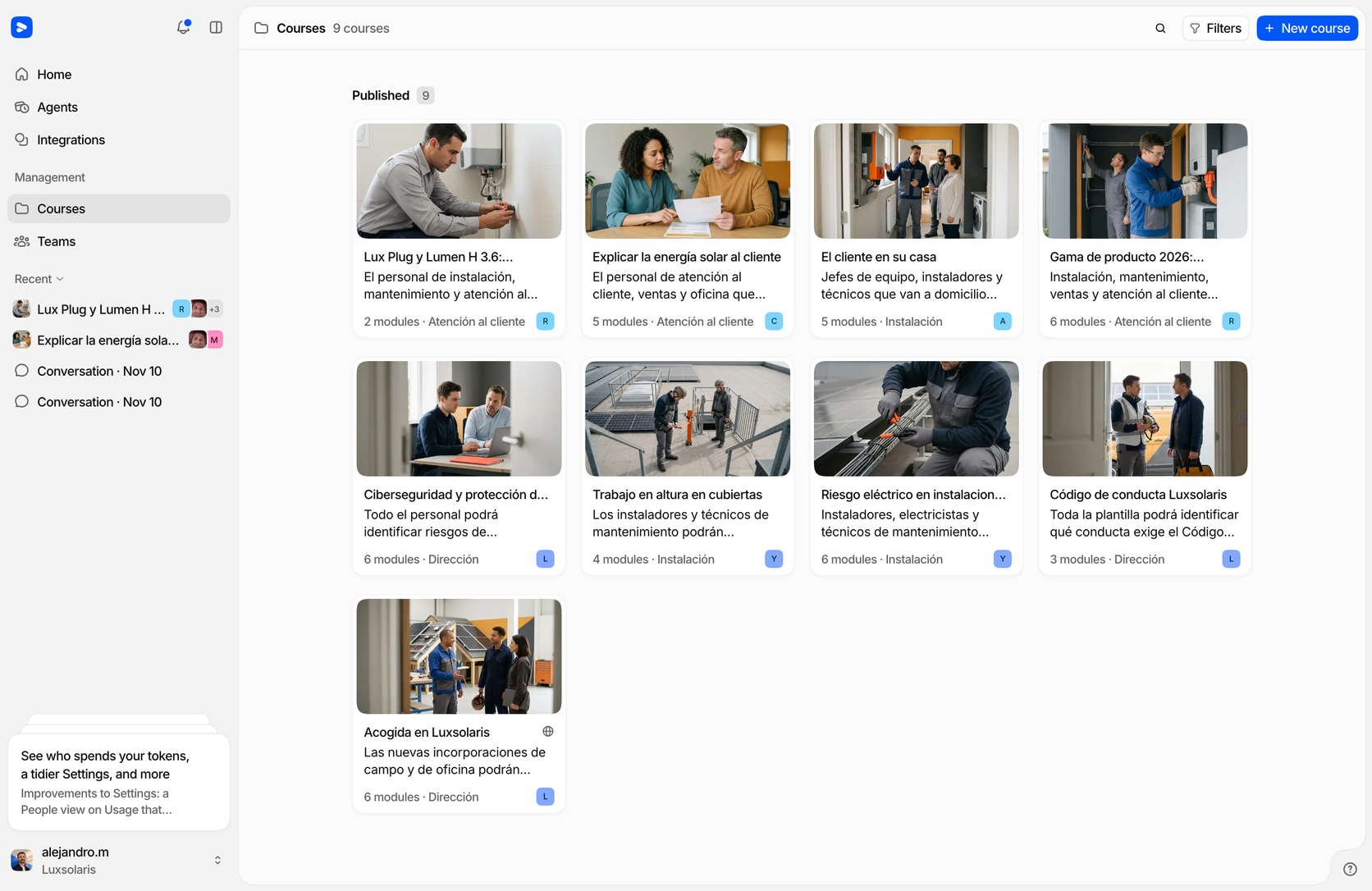
Search and filter
Courses sorts your courses into sections: the ones waiting on you, the published ones, and the drafts. The search icon at the top of the page opens a search field that narrows every section at once. A search or a filter also lists the unpublished courses it matches, under Unpublished. It looks in a course's name and its description, and ignores capitals and accents.
Filters, beside the search icon, opens the rest:
- Owner shows My courses or one person's courses.
- Team shows the courses a team receives. It appears once your courses go to more than one team.
The filters in use show at the top of the library. Remove one with its cross, or all of them with Clear filters. When nothing matches, the library says No course matches and offers to clear them.
The owner of a course
Each course has an owner: the person who answers for it. The library shows the owner's picture on the course; point at it to see their name and email. My courses lists the courses you own.
Waiting on you holds the courses you own that have a step left, such as assigning a team or publishing. A course waits on its owner alone; everyone else finds it under Published or Drafts, with the step still shown on it. A course with no owner, or whose owner is no longer an active admin or member, waits on the organization's admins until one of them hands it to someone.
Whoever starts a course owns it. A course made before owners existed shows the person who created its first module. To hand a course to someone else, choose Change owner in the course's ⋯ menu and pick an organization admin or member.
Who can do what
| Action | Who |
|---|---|
| Search and filter the library | Anyone who can open Courses |
| See a course's owner, Change owner | Organization admins and members |