Custom connectors
Add a service's MCP server, from Vidext's catalog or by its address, so Vidext's agents can use its tools in your conversations.
When the service you need isn't one of the knowledge sources, an admin can add its MCP server as a custom connector. Vidext's agents then use its tools in the chat, signed in as each person. Every other service is in Integrations.
| What | Where | Who |
|---|---|---|
| Add Microsoft Learn, Confluence or Gong | Its card under Knowledge sources, tagged MCP | Admins |
| Add any other MCP server | Add connector, under Custom connectors | Admins |
| Choose which tools the agents may run | The connector's page, under Tools | Admins |
| Connect or disconnect your own account | The connector's page | Admins and members |
An organization can add up to 20 custom connectors.
Add one from the catalog
Microsoft Learn, Confluence and Gong sit among the knowledge sources with an MCP tag. Admins see these cards; members see only the ones an admin has added.
Select a card to add it. Vidext adds the service's own server and starts your sign-in. Microsoft Learn is public documentation, so nobody signs in. Confluence and Gong first show Before you add: your Atlassian or Gong admin allows Vidext with the values on that page, and then you add it.
On a catalog connector, the tools that only read start at Allow. Every other tool starts Off until an admin chooses.
Add any other MCP server
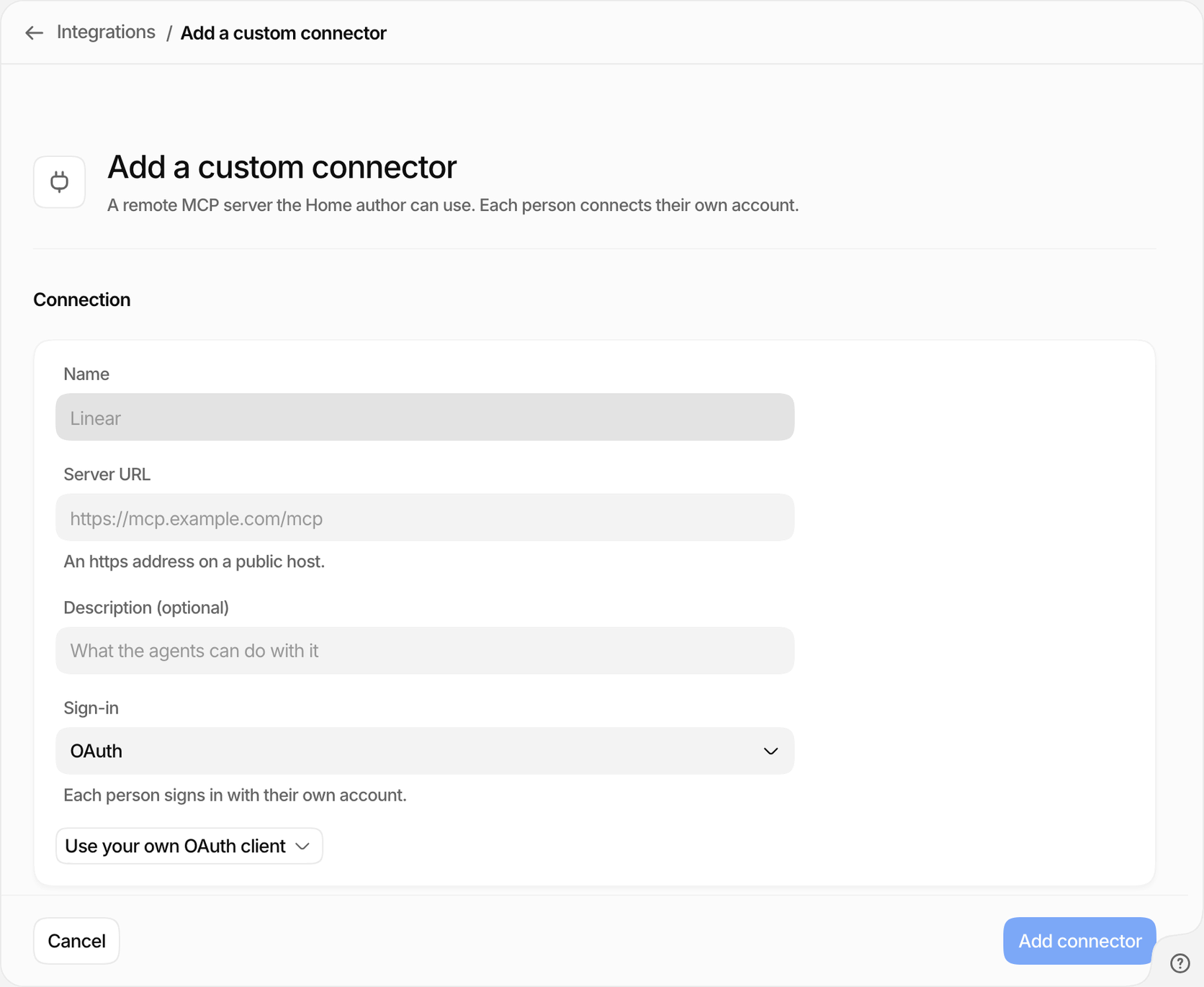
Select Add connector under Custom connectors. Give it a name, the server's https address, and how people sign in:
| Sign-in | What each person does |
|---|---|
| OAuth | Signs in with their own account. For a server that doesn't register Vidext on its own, open Use your own OAuth client and register the redirect URIs it shows. |
| API key | Pastes their own key. Vidext stores it encrypted and uses it only for their calls. |
| None | Nothing: it's a public server everyone uses the same way. |
Vidext reads the server's tools. A tool the server marks read-only starts at Allow, and every other tool at Ask.
Choose what the agents may run
On the connector's page, an admin sets each tool under Tools:
| Policy | What happens |
|---|---|
| Allow | It runs when the agents call it. |
| Ask | The agents show a card with the exact call. Nothing is sent until the conversation's owner selects Allow. |
| Off | It never runs. |
A tool the server adds or changes later shows as New or Changed, so you can review it. Refresh tools reads the server's list again.
Use it in the chat
Connect your own account on the connector's page, then ask in the chat. If the agents don't find a connector added while a conversation was open, start a new conversation.
- In a conversation someone else is on, every call waits for the owner, whatever its policy.
- From Slack, the owner can allow the card in @Vidext's thread.
- In a scheduled agent's run, a tool runs without asking only when its server marks it read-only.
Disconnect, on the connector's page, deletes your own connection. An admin who selects Remove deletes everyone's, and the agents can no longer use its tools.