Slack
Connect your organization's Slack workspace, ask @Vidext in threads and direct messages, and let Vidext's agents post to your channels.
Connect Slack and people ask Vidext's agents for help where they already talk: they mention @Vidext, and it answers in Slack. The agents can also post to your channels. Slack is one of your Integrations (where each thing happens).
| What | Where | Who |
|---|---|---|
| Connect, reconnect or disconnect the workspace | The Slack page, in Integrations | Admins |
| Link your own Slack account | @Vidext in Slack, the first time you ask | Admins and members |
| Ask @Vidext | A thread or a direct message in Slack | Admins and members, once linked |
| Post to a channel | The chat, or a scheduled agent | Admins and members |
| Turn Let agents post off, see the posts that didn't reach Slack | The Slack page | Admins |
Learners and requesters can't use @Vidext, and Vidext tells them so when they try. Members see the Slack page once Slack is connected.
Connect Slack
An admin connects the workspace once, for everyone in the organization.
Open Integrations and select the Slack card under AI apps.
Select Connect. Slack's install screen opens in the same tab.
Check that it names the right workspace, and approve the install. Slack sends you back to the Slack page, and the card moves to Connected.
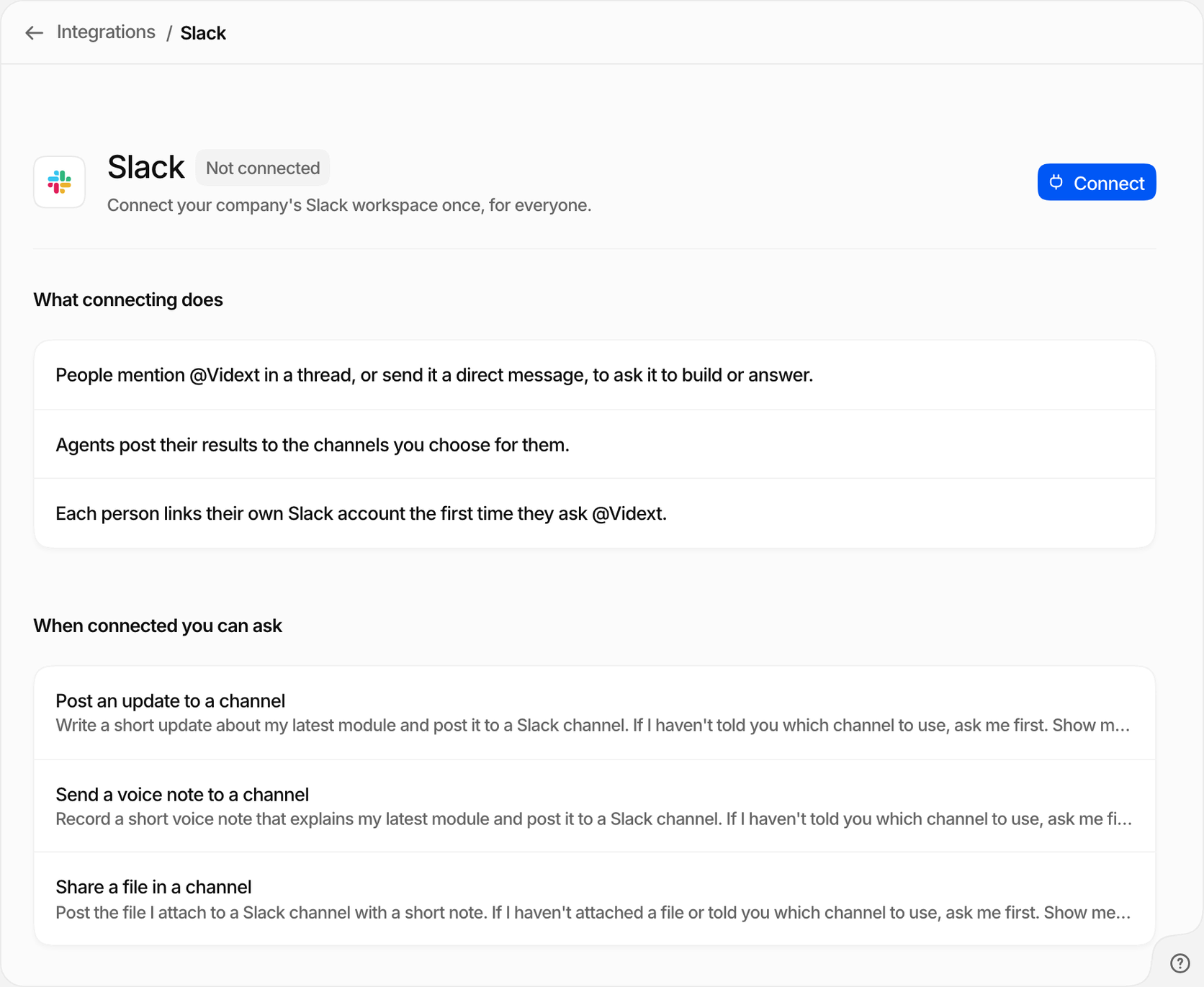
Once Slack is connected, the page also holds:
- Reconnect, when Slack needs attention or your workspace hasn't approved something, and Disconnect under More options: admins only.
- Your Slack account: who you're linked as, and Unlink.
- Let agents post: an admin's switch for every agent post.
- What Vidext can do in Slack: what is on. Reconnect to enable marks what your workspace hasn't approved yet.
- Posts that didn't reach Slack: the latest posts Slack refused, for admins.
An organization connects one Slack workspace, and a workspace connects to one Vidext organization. If your Slack admins approve every new app, one of them has to approve Vidext before the install can finish.
Link your Slack account
@Vidext answers each person as their own Vidext account, so everyone links their Slack account once.
Mention @Vidext in Slack, or send it a direct message. It replies with a link only you can see. The link works once, for 15 minutes.
Open it signed in to Vidext with the same email as your Slack account. The Slack page opens and says your account is linked.
Ask @Vidext again. It doesn't answer the message that asked you to link.
Unlink, under Your Slack account, removes the link, and @Vidext stops answering you until you link again. Your conversations stay in Vidext. Linking your Slack user to another Vidext account replaces the first link.
Ask @Vidext
| Where | How | Who sees the answer |
|---|---|---|
| A channel | Invite it once with /invite @Vidext, then mention @Vidext in a thread or a new message | Everyone in the channel, in that message's thread |
| A direct message | Write to @Vidext | Only you |
@Vidext works like the agents in the chat, for whoever mentioned it. It answers about your courses, reads your connected sources, and can plan, create and edit modules. It sees and changes only what you can, and spends your organization's tokens.
Everyone in the thread sees the answer
So in a channel the agents read only connections shared with the organization, not your own sources nor their index. Names, emails and other personal data are left out of answers there. To use your own sources or ask about people (learner progress), ask in a direct message. Gmail is never read from Slack.
@Vidext reads your message and its thread, at most 15 messages each time, and nothing else in Slack. In a long thread, put what matters in your own message. It does only what the person who mentioned it asks.
While it works, @Vidext reacts to your message:
| Reaction | What it means |
|---|---|
:eyes: | It's working. Its answer appears in the thread as it writes. |
:white_check_mark: | It's done. |
:raising_hand: | It waited 2 hours for your answer. Answer in Vidext, or ask @Vidext again in the thread to carry on there. |
:hourglass_flowing_sand: | It's still working after 20 minutes. It goes on in Vidext, and its link lets you follow it there. |
:x: | It couldn't finish. Its message links to the conversation in Vidext, or says your organization is out of tokens or its plan payment is overdue. |
When the agents need your answer, @Vidext asks in the thread with a button per choice. Answer there or in Vidext.
Post to Slack from Vidext
Agents post to public channels, and to private channels Vidext was invited to. Every post comes from the Vidext app, says who sent it, notifies nobody (not even @here or @channel) and shows no link previews. Personal data, such as a learner's name, is replaced in a channel and kept in a direct message.
| From | How | Who approves |
|---|---|---|
| The chat | Ask the agents to post and name the channel, for example "Tell #sales the onboarding course is ready." To answer in a thread, give them its message's link. | The person who asked, with Send on the card |
| A scheduled agent | Choose up to 10 channels with Add channel, on the card that proposes it or under Post to Slack channels in its Edit | Nobody: its runs post only there, while they run, under the agent's own name and picture |
From the chat, the card shows the channel and the message exactly as Slack will show it, ending with Sent by your name from Vidext. Nothing is posted until you choose Send.
- Only the person who asked can send it, in Vidext or under the card in @Vidext's thread. In a shared conversation, not even the owner can send it for them. An AI assistant can't approve it.
- A changed post doesn't go out. If the message or the channel changes after the card appears, nothing is posted.
- An unclear channel is asked about. If the name matches several channels or none, the agents ask which.
Let agents post is on once Slack is connected. Turning it off stops every post, from the chat and from scheduled agents, at once. @Vidext still answers when mentioned.
| Under Posts that didn't reach Slack | What to do |
|---|---|
| The channel was deleted, or @Vidext can't see it | Pick another channel. |
| The channel is archived | Unarchive it in Slack, or pick another channel. |
| @Vidext isn't in the channel | Invite it with /invite @Vidext, then try again. |
When Slack needs attention
The Slack card and page show Needs attention. Until it's fixed, Vidext can't post or answer in Slack.
| You see | What to do |
|---|---|
| Vidext was removed from Slack, Slack revoked its access, or Slack stopped accepting it | An admin selects Reconnect and approves the install. Slack opens on the same workspace, and everyone's linked accounts stay as they were. |
| As a member, the reason and a request to have an admin reconnect | Ask an admin. |
Disconnect
Admins select More options at the top of the Slack page, then Disconnect, and confirm.
- Vidext removes its app from the workspace and deletes its Slack tokens. If Slack can't be reached, Vidext disconnects anyway; remove the app in Slack too.
- Agents stop posting, @Vidext stops answering, and everyone's linked account is removed.
- Connecting again starts over, and everyone links their account again.
What Vidext keeps
The Slack messages @Vidext reads, and its answers, are part of your conversation in Vidext, kept until you delete it. Deleting it doesn't remove what was posted in Slack. See Data handling and deletion. Vidext doesn't use Slack data to train its own AI models (AI providers and data flow).
What isn't available
- Reading the rest of Slack. Vidext reads only the thread it's mentioned in. The agents can't search Slack or use it as a source.
- Posting as you. Posts come from the Vidext app.
- Approving in Slack a post to another private channel. Only Vidext shows it.
- Slack Connect. @Vidext doesn't answer in channels shared with another company, nor people from another workspace. Agents can still post there, where the other company reads it.
- Course announcements. Publishing a course posts nothing in Slack. Ask the agents to post it.