The studio
The panel in the chat where you watch a module and adjust it — play its script, type over any of its texts, redraw its pictures, pick its voice and presenter, preview it as a learner gets it, build it, and share it.
The studio is the panel in the chat where you watch a module and adjust it. It plays the module on a stage, with its script (the words and screens of the module) underneath. It opens beside the conversation, so you can look at the module and ask Vidext's agents for changes in the same place.
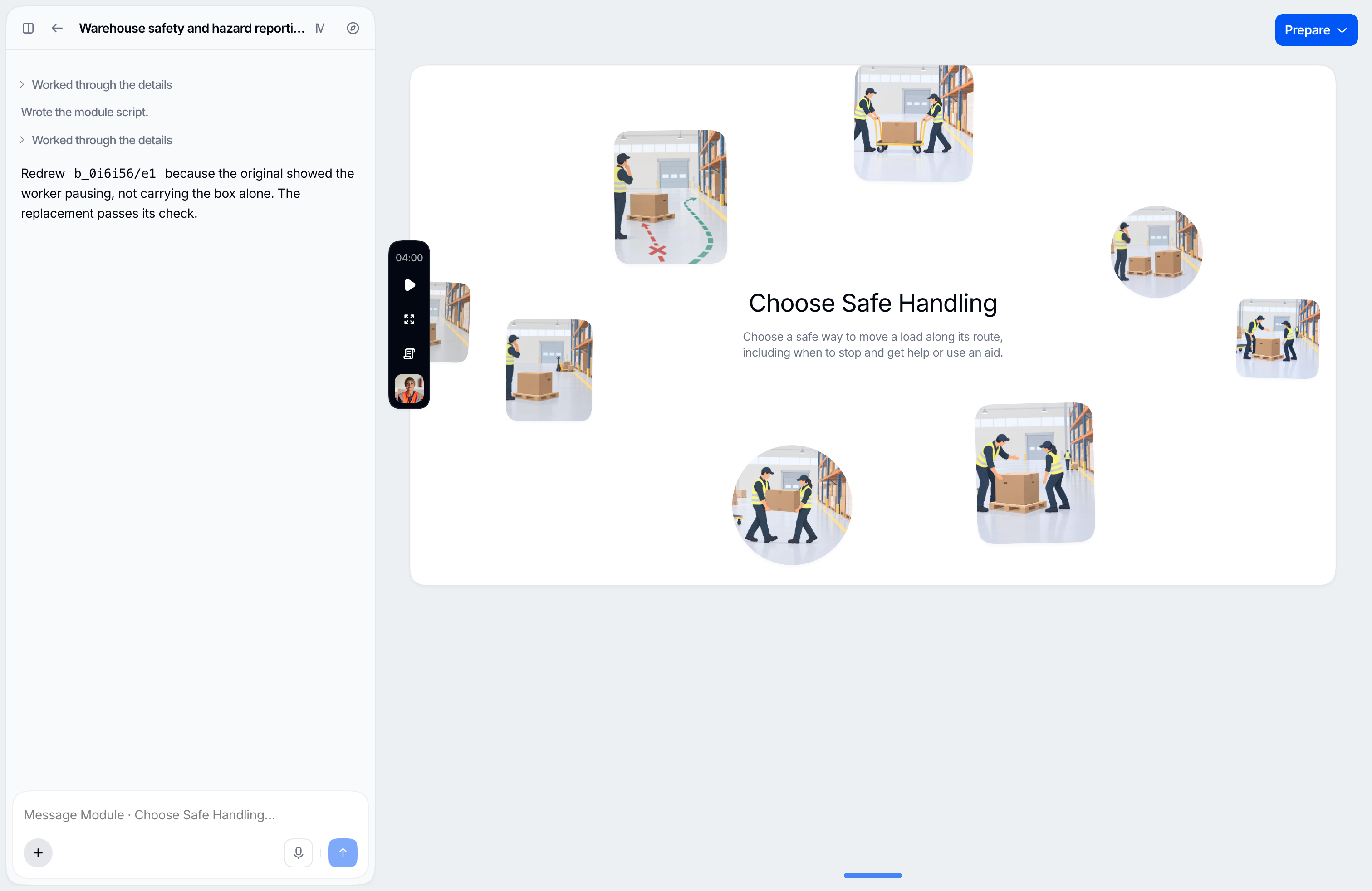
Every module of a course you build in the chat has one. In the studio you can:
- watch the module while it is being written, and play it at any time;
- read its script;
- type over any of its texts, or pick a part of the module to ask about in the chat;
- redraw, remove, or restore its pictures;
- choose its voice and its presenter;
- preview it as a learner gets it;
- build it for its course, from its conversation beside the studio;
- share it.
Open a module's studio
In the list beside the conversation, open a course under Courses and click one of its modules. When you choose to build the first module, the chat opens it for you.
You can open a module while it is still being written. The stage first shows the step the agents are at. Then the screens appear one by one as they are written, and the line over the script counts them. Recording and editing wait until the script is finished, and there is no module line until the first script is written.
The stage and its controls
The stage plays the module from its script: each screen in turn, with its recorded narration. Press play on a screen whose narration is still being recorded and the play button shows a spinner until the take is recorded; the screen then plays on its own. A screen whose narration could not be recorded is passed without a voice. It follows every change to the script, the screens, or the recordings, so you do not need to build the module to see a change.
The controls sit on a pill at the stage's left edge: the time left, play and pause, Preview, the Script drawer, and the module's voice and presenter (Choose an AI instructor). On a phone there is no pill, and Preview sits over the stage.
A module's build and its public link open from the line on its conversation's message field; see Build a module and Share a module.
The script
The Script drawer opens from the pill, and you can drag it to the height you want. It lists what the module says, one row each: the Intro, each chapter's opening and its screens, and the Closing, with the words beside each one. A beat's row also lists the lines its screen shows, under On screen. A check has a row of its own, with its questions as written and the correct answer marked, and so does a video, with its title. A check's questions are spoken on the stage too: each question is recorded as a take of its own and heard as it comes up. A chapter after the first with no opening line says its title, and a module with no Intro says its promise over its cover, or its title when it has no promise either, so the first screen always has a voice. An interactive scene has a row of its own. Click a row to bring its screen to the stage. Every text in the drawer can be typed over in place; see Change a text.
The line across the top of the Script drawer says where the script stands: how many scenes it has and how long its voiceover runs, Recording the voiceover · 3 of 8 scenes while the voice is recorded, or how many scenes could not be recorded. It also says where the build stands:
- Not built yet, or Building… while a build runs;
- Built for an earlier script, or 2 screens are out of date, when the script has moved on since the last build;
- Voice changed, the next takes and build use it, Presenter changed, the next build applies it, or Pictures changed, the next build applies them after you change one of them, or Screens changed, the next build applies them after you type over a line on a screen.
Each screen's narration is recorded as soon as the script is written; the studio calls each recording a take. Takes are kept by their words and their voice, so only screens whose words change are recorded again.
Change a text
Click a text on the stage to pick it. The tab over the message field reads You're editing and names what you picked, and your next message asks for a change to it. Opening a text in the Script drawer to type over it picks it too, which is how you point at a text the stage doesn't draw: a narration paragraph, the opening, the closing, or a video's title. To pick a whole screen, click an empty part of it on the stage, which then shows a blue frame around it, or click its row in the script. Click it again, or press Escape, to let a pick go.
You can also type over any text of the module yourself, where a learner meets it:
- On the stage, what a screen shows: the module's title, its promise and its learning points on the cover, a chapter's title on its card, a beat's title where its screen shows it, each line of a screen, and a check's questions, options, feedback, and explanations.
- In the Script drawer, what the voice says and what the stage doesn't show: the intro, each chapter's opening line, each paragraph of a beat's narration, the closing, a video's title, and an interactive scene's own words, behind Edit words on its row. Every text the stage shows but the module's title can be typed over in the drawer too: the cover's promise and points, chapter and beat titles, a screen's lines, and a check's texts. That helps when the stage is too small to click on, as on a phone, or when you work from the keyboard.
Double-click a text on the stage, or pick it and press Enter, to type over it; in the drawer, use the text's pencil or double-click it. Each text is one line: press Enter or choose Save to keep your words, or Escape to leave the text as it was. Your words show at once and go in exactly as you typed them, with no agent rewriting them. The text's badge says Saving… and then Saved, and a text a person changed says Edited by you, or who changed it.
What follows a change
- A line on a screen changes only what the screen shows, never what the voice says. The screen also has to agree with the narration, so some changes are refused, for example The narration never says that number, so the screen can't show it. See Voices and narration.
- Words the voice says are recorded again a few seconds after you stop typing: the intro, a chapter's opening line, a paragraph of narration, a check's question, the closing, and the promise or a chapter's title where they are said because there is no intro or opening line. Meanwhile the stage says Re-recording the voice… over the scene. Only the words that changed are recorded again. To find a beat's narration from the stage, pick the beat and choose Edit narration.
- Narration a beat's screen no longer agrees with gets the screen laid out again. The stage keeps the old screen and says Updating the screen… until the new one is ready.
- A title is renamed everywhere the module carries it; the module's title is renamed in its course too.
- About half a minute after your last change to the script, the script is reviewed again. A finding about your words is left for you to settle: no agent rewrites them. See Review findings.
A text change never starts a build: it goes into the module with its next build.
Undo a change
For a while after a change is saved, the stage's corner says Saved with Undo, and after an undo, Undone with Redo. You can also press ⌘Z (Ctrl+Z) to take back the changes you made in the studio, newest first, and ⇧⌘Z (Ctrl+Shift+Z) to put them back, while you are in the studio and not typing in a text. A text someone else has changed since can't be undone: This text changed after your edit, so it can't be undone.
When a change is refused
Words that can't be kept are refused where you typed them, and when you open the text again, your words are still there to fix. A field whose words can't be saved turns red and says why: Write something here. when it is empty, That's longer than this text can be. past the text's length, or A sentence is too long to say in one go. Split it. for words the voice says. Words that don't fit where they go are refused once saved, for example That text doesn't fit the script here. or That title can't be used here. Try other words.
You can type over a text while the agents are working on the module, except while an agent writes the whole script again: its texts can still be picked, but say The script is being rewritten. You can edit once that's done. If an agent or someone else in the conversation changes the same text first, the newer words are kept and the studio says so.
Voice and presenter
Click the face on the pill (Choose an AI instructor) to choose the module's voice on the Voice tab and its presenter on the Avatar tab, where your organization's own presenters come first. The presenter speaks to camera only on the screens the agents give it, and the stage shows the presenter's still image there. A module with no such screen has no presenter video to render. See Voices and narration.
Pictures
When the course has pictures, the pictures of the screen in front of you sit in the stage's lower-right corner, one thumbnail for each place the screen holds one. A picture still being drawn turns while it is made, and the row says Drawing a picture…. Choose a thumbnail to see what it shows and what you can do with it:
- Regenerate draws it again.
- Remove takes it out of the module. It then reads Removed from the build, and Restore brings it back.
- A place with no picture yet (No picture yet) offers Draw a picture.
Changing a line of text on the stage, such as a card's title or description, keeps its picture as it is, even when the picture no longer matches the new words: use Regenerate when you want one drawn for them. A line the agent changes in the chat does not keep its picture. A picture being drawn takes no request until it is done. Once a change settles, the module is built again on its own to carry it; until then, the line at the top of the Script drawer says Pictures changed, the next build applies them. A course without pictures shows none on the stage: ask in the chat to turn them on. See Pictures.
Interactive scenes
When you ask for an interactive scene (a 3D model learners turn or take apart, a simulation, a game), it gets a row of its own in the script. To ask for a change to it, click its row in the script, which picks the scene whole. Once it is built, Edit words on its row lets you type over its own words, its title, its summary, and each text it shows, until you choose Done.
A scene that is not built shows Not built yet with Build it. One that does not play shows Doesn't play yet with Build it again. Interactive scenes play only on a secure (https) page.
Preview
Preview plays the module as a learner gets it, over the whole window, and the bar over it names what it plays. While the latest build is current, it plays that build, with the tutor answering from that module only, as on a public link: The built module, as a learner gets it when it is the module's built version, Latest build — not finished yet when the latest build is not the module's built version yet, and Latest build while the studio cannot say. Otherwise it plays The module without the avatar render: the script as the stage shows it, without the presenter's video.
A preview is only for looking. Nothing you do in it counts towards anyone's learning record. Exit preview, Escape, or the browser's Back closes it and leaves the stage on the screen where you stopped.
Build a module
Building a module makes a version that is ready for its course; learners still see nothing until the course is published. Where the module stands, and building it, sit in one line on top of the message field of the module's own conversation: the agent's tab beside the studio, whose field reads Message Module · …. The line shows a status, one short fact, and at most one button. It never names the course.
- Not built · learners can't see it yet, with Build.
- Building · starting the build, or Building · rendering the avatar video, with no button.
- Built · at 11:06, with Preview, which opens the built version in a new tab.
- Script changed · built at 10:43, with Build again. In place of Script changed it can say Voice changed, Presenter changed, Pictures changed, Screens changed, or, when several changed, Changed since the build.
- Live · 24 learners, with Preview. When a newer build is ready but not yet published, it reads Built · learners still see the earlier build.
- Withdrawn · hidden from learners, with Preview.
- Couldn't build · the avatar video didn't render, with Try again. Try again also follows the connection dropped, no answer from the build, and the build couldn't start. Reasons that need a person come with no button: the script has open review issues, answer the author's question first, there's no finished script yet, this month's audio allowance is used up, the author is still writing, and ask the author why.
Build and Build again start the build straight away, without waiting for a reply in the chat. While the agents are working on the module, the button waits and the line says build when the author finishes. In a conversation you can only read, the line shows where the module stands, with no button.
Click the line to open it, as the publish strip opens. It shows the module's build (Built today 10:43 AM · from the current script, with Preview, and Live version while learners have an earlier one), then how the module is shared. Escape, Back, or a click elsewhere folds it again.
While a line of the stage is picked (the You're editing tab on the message field), the module line folds into a small chip next to + that shows only the status. Click the chip to let the pick go, as the tab's × does, and the full line comes back.
When you fold the conversation away beside the studio, on a phone, where the studio covers it, or when no conversation on screen is working on that module, the same line shows in the row over the stage, and clicking it opens the same details there.
A course is published from the publish strip above the conversation's own message field, never from a module's tab; see Publish a course. What a build makes, and how the presenter's video holds a version until it renders, is on Build, review, and get ready to publish.
Share a module
The opened module line ends with Public access: the module's public link, with Copy, and the switch for an AI assistant for anonymous viewers. It turns on only once the module's course has made it live, and until then says to publish the course. While the link is on, the folded line shows Public. There is nothing to share before the module's first build. See Draft, built, and live.
Last updated on