Working in the chat
Where you build courses with Vidext's agents: open the chat, start a conversation, answer the agents, watch and message them, and find your sources and conversations.
The chat is where you tell Vidext's agents what you want to teach and build the course with them. This page explains how to use it, from your first message to coming back to a conversation later.
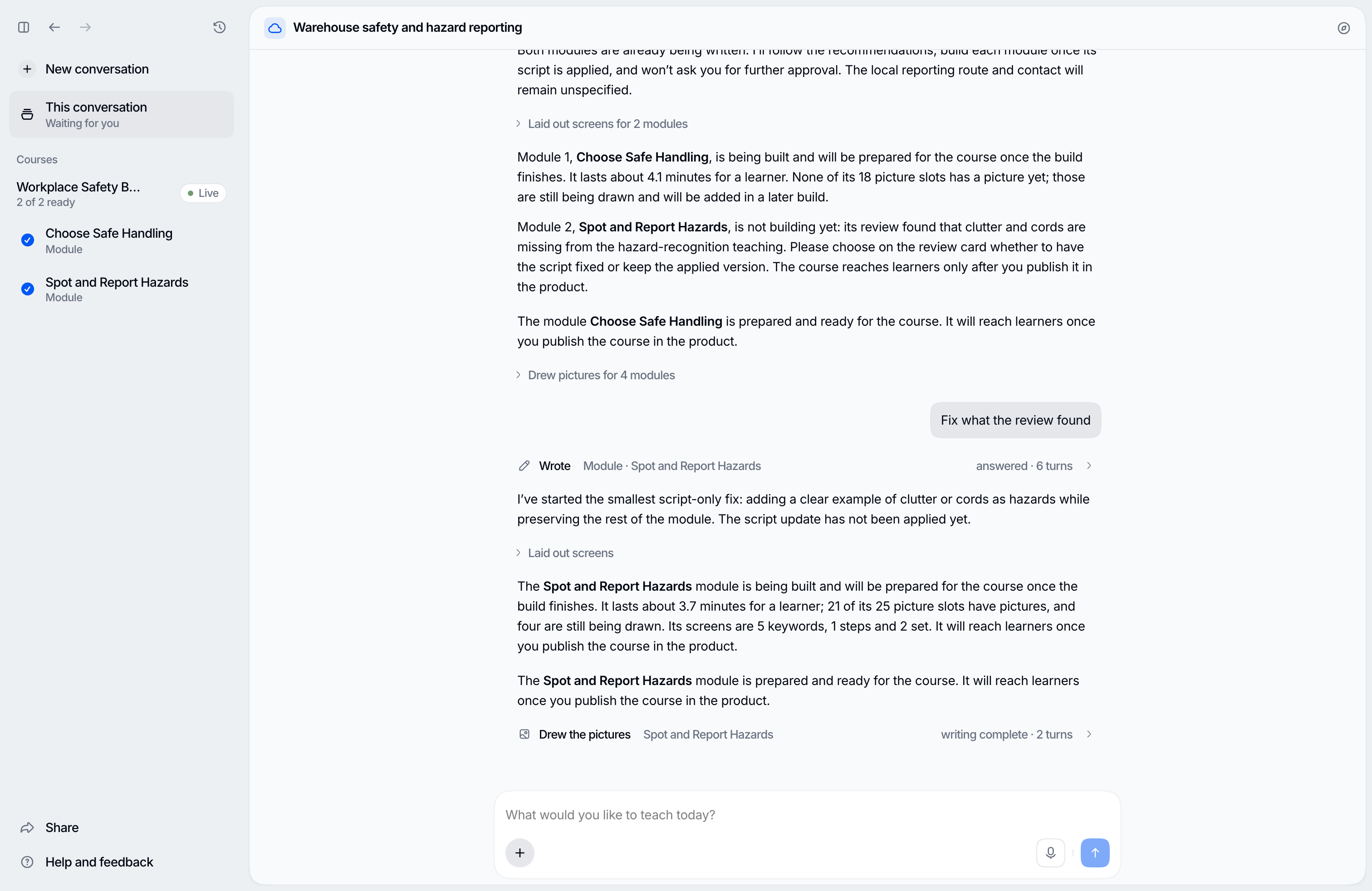
Vidext's agents are AI agents that research your material, plan the course, write each module and build it. A module is one short interactive video lesson; a course groups modules for an audience. Everything the agents write — course briefs, structures, module plans and scripts — is saved with your organization's files, so any conversation can pick up any course.
Only organization admins and members can open the chat. A learner who follows a link to it is taken to their learning home, and anyone else is told they don't have access.
Open the chat
The chat is your Home. In the sidebar, choose Home, or open the chat directly. Create module, at the top right of the Modules and courses page under Content, opens it too.
The chat opens on an empty conversation with a single field that asks What would you like to teach today? On a wider screen, inside a conversation the sidebar folds to a column of icons, so the conversation's own contents fit beside it.
Start a conversation
Type what you want to teach, attach files (or drag them onto the page), and send. Nothing is created before you send: your first message opens a new conversation, named after that message.
- Material with no request is fine. Send only files and the agents tell you what they cover and who they are written for, then ask what learners should be able to do afterwards.
- Links. A YouTube link is added as a source. For any other web address, the agents read the page and tell you what it covers; the page is not added to your organization's documents. See Adding your sources.
- An existing course. If a course in your organization already covers the subject, the agents say so and offer to improve it, add a module to it, or start a new course.
The agents reply in the language of your newest message. Ask them to answer in one language from now on, and they keep it until you ask for your own language back. The language a course is written in is a separate decision, made in its course brief.
To see how a course takes shape — the questions, the course brief, the structure, and choosing what to build — read Plan a course.
How the agents answer you
One agent answers you and coordinates the work. Longer work goes to other agents that run alongside it: some research the topic on the web and in research papers, one writes each module's plan and script, others lay out each module's screens, and others check each script against its sources. Each one appears in the conversation while it works, with a line saying what it is doing.
When the agents ask you something
When the agents need a decision, they ask in the conversation and show a card with suggested answers, the first one recommended. While the card is open it takes the place of the message field: pick an answer, or type your own (Type your own answer) and choose Send answer. Dismiss question declines it. To answer with a file, attach it while the card is open (or drag or paste it): the field becomes your reply, and Send answer sends your words and the file to the agent that asked, as your answer. A message you send while a question is open is read once you answer.
After a reply, the agents may offer Suggested next steps, one marked Recommended. Choose one to send it, or Dismiss suggestion and keep typing.
Watch an agent and message it
- Watch. Open an agent from the conversation to follow its work in its own tab.
- Message. An agent's tab has its own message field, labelled Message and the agent's name, so you can steer one module's writing without interrupting the rest. If the agent writing a module is in the middle of a reply, your message stops that reply and the agent carries on with your message, keeping the work it has already done.
- Stop. While the agents are answering and the message field is empty, Send becomes Stop; with text or files in the field it stays Send. If you send a message while the chat is still getting ready, Stop takes it back and puts the text back in the field. Stop also ends the agents your messages started. To stop just one agent, use the Stop button that carries its name, on its row.
Change any text of a module
Ask for a change to any text of a module by naming it, in the conversation or in the tab of the agent writing that module: the cover's promise or one of its learning points, the opening, a chapter's introduction, a beat's narration or a line on its screen, a question, an option or what a learner reads after choosing it, a video's title, or the closing. When you give the exact words, they go in as you wrote them and nothing else moves; anything to be written, shortened or improved is written by the agent for that module. Asked for a new title for the module, a chapter or a beat, the agents rename it everywhere it appears, the cover and the course included. To point at one text, pick it in the studio first.
Shortcuts with /
Type / in the message field to see the shortcuts:
- Course brief agrees the goal, researches the topic and your files, and writes the course brief before any module.
- Course structure turns an approved brief into the fewest modules that cover it.
- In the tab of the agent writing one module, the shortcuts are Module plan and Module script.
- Fast mode gives faster answers at twice the price. Only the conversation's owner can turn it on or off; while it is on, the conversation header shows it.
A shortcut becomes a chip in the field: add any context and send. You never need one — a plain request starts the same work.
Sources
Once the agents have drawn on anything, the conversation header shows a Sources button (the compass icon). It opens a panel with what was Used — files you attached, your organization's documents, and web pages the agents' research cites — and what was Read, not used. Files and documents are listed by name and do not open from there; a web page opens in a new tab. To add material, see Adding your sources.
Context management
In a conversation, open Help and feedback at the foot of the sidebar: the Context management row shows how full the conversation is, in amber when it is getting full. Pointing at it shows what the author has in mind: how it works, your organization's profile and what it remembers about you, the sources it read, and the conversation itself, each with its share.
When the conversation fills up, the author sums up older messages on its own to make room; the conversation shows Summarized to make room where it did. Your course and sources are not affected. There is no way to sum it up by hand, and you cannot rewind to a message from before a summary.
Your conversations
Ctrl+K (⌘K on a Mac), or the history icon at the top of the open sidebar (inside a conversation, at the top of its panel instead), lists your Conversations, grouped by Today, Older, Shared with you, and Archived, with a New conversation button.
- Main, at the top, is your own ongoing conversation with the agents. It cannot be archived, deleted, or shared.
- Each of your other conversations has a menu with Archive (or Restore) and Delete. An archived conversation keeps its history and can be read; restore it to continue working.
- Delete permanently removes the conversation and its history. Archive it instead if you may want it back.
- Conversations colleagues shared with you appear under Shared with you; their menu offers Leave. See Work together.
On Home, the open sidebar on a wider screen also lists your conversations below Library, each led by a picture from its course or the course's colours: Needs you, with a count, holds those with an agent's question for you or a module Ready to watch; Recent shows the latest three of the rest, in bold while something in them is unseen, ringed while a course builds, with the faces of the people you share it with and when each last moved. Conversations colleagues shared with you can appear in Recent too, led by their owner's face; they never show as unseen or under Needs you. Quick chats from the same day, ones that made no course or picture and that nobody else is in, fold into one row that counts the others. Each row's menu offers Archive, or Leave on a conversation shared with you.
The list beside an open conversation shows the courses that conversation has worked on, with their modules. To come back to a course from a new conversation, ask the agents about it by name.
Dictation
Choose the microphone (Voice input) in the message field and speak. Your words land in the field for you to check before sending; choose Stop dictation to finish. It works for answering a question too. Your browser asks for microphone access the first time.
When the chat is starting or paused
Each conversation runs on Vidext's servers, not in your browser tab.
- Starting. Your first message starts the conversation: Getting ready, sometimes Waiting in line with an estimate, then Loading your content. You can keep typing; your message is sent as soon as everything is ready.
- Closing the tab. The agents keep working without you. The header says Working remotely — Safe to close.
- Paused. A conversation left idle pauses: Paused — send a message to pick up where you left off.
- It cannot start. If the chat does not start, it says so; send your message again, or try again later.
- Content did not load. If your organization's setup has not finished, the chat says an administrator has to finish onboarding before your content can load.
What the agents remember
When you state a lasting preference about how you build courses — a language, a tone, a typical length, a structure you always want — the agents remember it for later conversations, and they do the same with facts you confirm about your organization. Work in progress is not kept there: the course files hold it. That memory is kept with your organization's files, so colleagues can read it: never ask the agents to remember anything personal. Tell them when something no longer applies and they forget it.
When the memory gets nearly full, the agents tidy it after a turn: they merge notes that say the same thing and remove ones that are out of date, such as a preference you have since changed or a fact your organization's files now state. A preference you did not change is never removed. The chat shows Tidied memory where it happened; open it to see what was merged and removed. A tidy cannot be undone: if it removed a note you still want, ask the agents to remember it again.
Publishing is up to you
Vidext's agents build modules, but they never publish them. A built module reaches learners only when someone publishes its course. When modules are built, a strip above the message field offers Publish course — see Publish a course.
Last updated on