Publish a course
Make a course available to the teams it is for, keep it current with updates, and take it back when you need to.
Publishing is how a course reaches learners. Use this page when a course's modules are ready and you want the people on its teams to take it, when you have improved a module and want learners to get the new version, or when you need to hide a module or a whole course again.
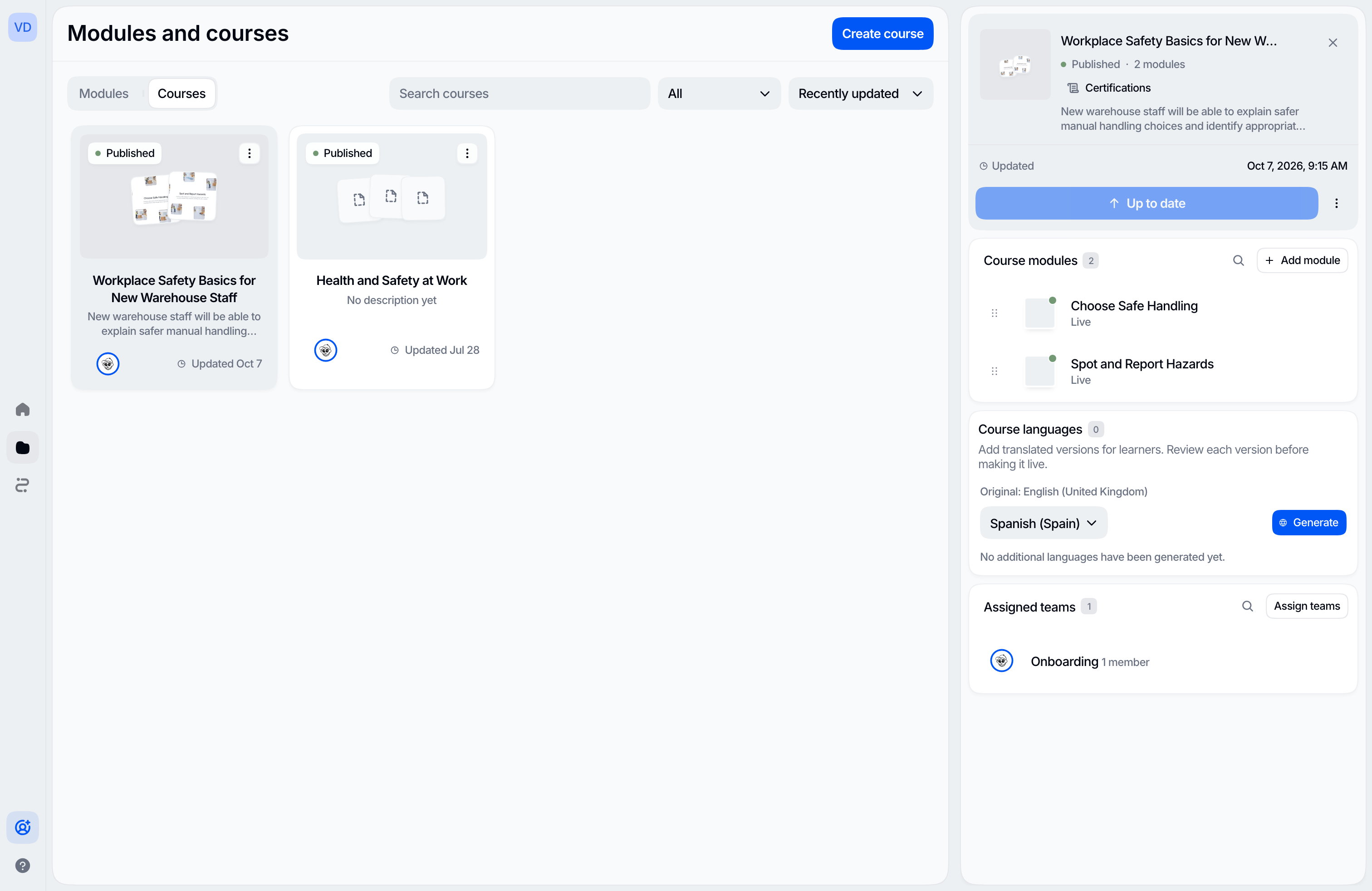
A course is a group of modules for one audience, and a module is one short interactive video lesson. Learners always receive courses, never loose modules.
Built, published, and live
Three words decide what learners see, and you will meet them on buttons and labels throughout Vidext:
- Built describes a module. Building a module freezes the version you have now so it is ready to go out. Learners still see nothing. Each time Vidext's agents build a module in the chat, where you tell them what you want to teach, that build becomes the module's built version. You can also build a module yourself with Build, on the module line above the message field of the module's conversation beside the studio, or in the module's menu on Modules and courses. A module with a presenter counts as built only once the presenter's video has finished rendering; until then it reads Building · rendering avatar (on the module line, Building · rendering the avatar video).
- Published describes a course. Publishing a course makes it available to the learners on the teams it is assigned to. It is always a person's decision: Vidext's agents can build modules, but they never publish a course.
- Live is what learners actually get. When you publish a course, each of its built modules goes live at its built version. If you keep changing a module afterwards, learners keep the live version until you build it again and publish an update.
A module can have all three at once: a live version learners are taking, a newer built version waiting for the next publish, and changes you are still making. The full picture is in Draft, built, and live, and how a module gets built is in Build, review, and get ready to publish.
Before you publish
A course can be published when it has:
- At least one built module.
- At least one team. Without a team nobody would see the course. The publish strip in the chat then reads assign a team to publish, and the publish review says No one will see this yet. Assign at least one team. and offers Assign teams, so you can fix it without leaving. Who can assign teams is in Teams and assignment.
A course does not have to be complete. You can publish it while some modules are still hidden and bring them in later with an update.
Publish from the chat
When a course you are building in the chat has something to publish, a publish strip appears above the message box. It says what is ready and where the course stands, for example 3 modules ready · not published yet or 2 changes ready · live for 1 team, next to Publish course or Publish update (2). If the conversation covers several courses, Switch course picks the one the strip shows.
Open the strip to review what will happen before you confirm:
- Goes live lists the modules this publish makes live, each marked as new or updated.
- Stays hidden lists the rest, each with its reason (Not built, Building · rendering avatar, or Withdrawn), and reminds you that learners won't see them or count them toward completion.
- Each row has its own action: Build a module that isn't built, Restore a withdrawn one, or Withdraw one that is live or about to go live for the first time.
- The audience line names the teams and how many learners get the course right now.
- More publishing actions holds Unpublish, Archive, and Restore.
Confirm from the review (Enter works there; Esc closes it). Once it goes through, you get View as learner and Copy course link. If it fails, the strip says Couldn't publish · nothing changed for learners and offers Try again.
The same review also opens from the course's overview in the chat, which counts how many of its modules are built.
Publish from Modules and courses
On Modules and courses, under Courses, open the course's menu and choose Publish course. The Publish dialog groups the modules into Going live, Getting a newer version, and Staying hidden (with the reason for each), and lists the teams under Who gets it. The confirm button says how much goes out, for example Publish 3 of 5 modules.
What publishing does
- The course becomes Published and appears for the learners on its teams.
- Every built module that is not withdrawn goes live at its built version.
- Modules that are not built, still building, or withdrawn stay hidden. Learners don't see them, and they don't count toward completing the course.
- A publish either completes or changes nothing. Learners never get half of one.
- The first publish enrolls everyone on the course's teams, and each of them gets one enrollment email. See Enrollments.
Publish an update
Learners keep the version they have until you publish again. When a module is built for the first time, or built again with changes, the course offers Publish update with the number of modules waiting. When nothing is waiting, it reads Up to date.
An update makes only those modules live; everything else stays as it is. Completed modules stay completed, learners in progress keep their place, and nobody gets an email. If an update makes a new module live, learners who had already finished the course now have that module still to do.
Withdraw and restore a module
To hide one module of a published course, use Withdraw from learners in the module's menu in the course panel, or Withdraw next to it in the review in the chat. Learners lose it at once and keep their progress in it. Withdrawing the course's last live module hides the whole course from its learners until one of its modules goes live again.
You can hold back a built module that is not live yet the same way, in a course of any status: Withdraw before publishing in its menu, or Withdraw in the review. Nothing asks you to confirm, since learners lose nothing; the module simply stays out of the next publish.
Restore does not put a module back by itself. The module waits, built, and goes live with the course's next publish.
Taking a module out of its course, moving it to another course, or archiving it also hides it at once.
Unpublish
Unpublish, in the course's menu, takes a published course away from the learners on its teams. Their enrollments and progress are kept. Publishing it again gives them access back without sending another enrollment email.
Archive, restore, and delete
Archive unpublishes the course and moves it to the archived courses. An archived course takes no new modules or teams. Restore, on the archived course or on its overview in the chat, brings it back unpublished (or as a draft if it was never published); publish it again to give learners access.
Delete removes the course but not its modules or teams; the modules stay in your library. A course that has issued certificates can't be deleted.
Each publish, update, unpublish, archive, and restore is recorded with who did it and when. See Review and traceability. You can't roll back to an earlier publish.
Public links depend on the course
A module can be shared publicly only while it is live, which means only while its course is published (Publish the module's course to share it publicly). Unpublishing or archiving the course, withdrawing the module, or taking it out of the course makes its public link return not found immediately. See Live is not public.
Who can do what
| Action | Who |
|---|---|
| Build a module | Organization admins and members |
| Publish course, Publish update, Unpublish | Organization admins and members |
| Withdraw from learners, Withdraw before publishing, Restore a module | Organization admins and members |
| Assign teams | Organization admins, and admins of a team the course is assigned to |
| Archive, Restore, Delete a course | Organization admins |
| Vidext's agents | Build modules; never publish |
Team roles never grant publishing. See Roles and permissions.
Last updated on