Learner progress and certificates
Follow how a course's learners are doing, and get their certificates and evidence.
Use this page once a course is published and you want to know how it is going: who it reached, how far each learner got, and, when the course issues certificates, who has one and who is stuck.
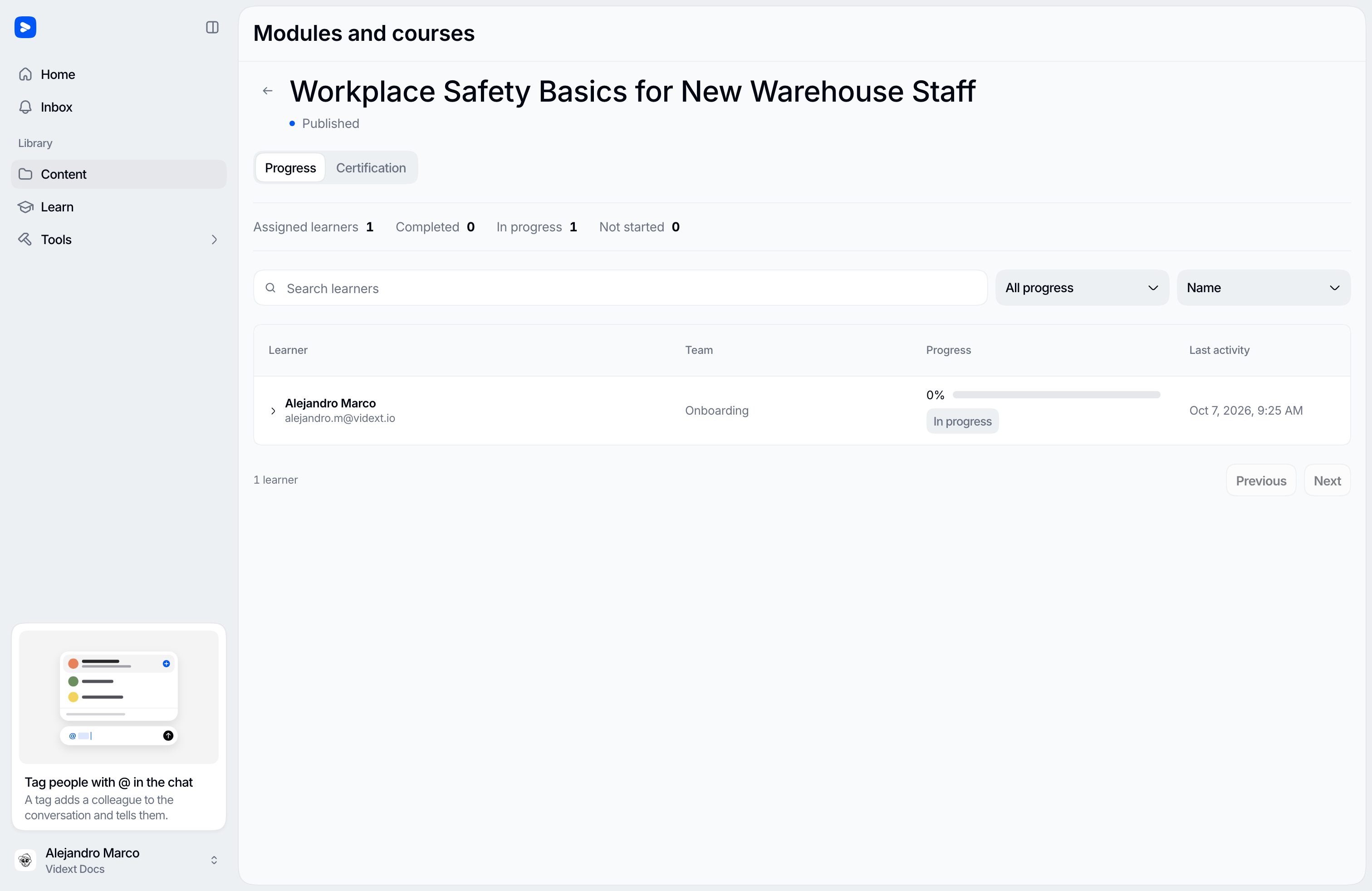
Every course has a progress view for this. Open it on Modules and courses, under Courses, from the course's menu. Organization admins find it as Certifications; team admins find it as Learner progress.
Who sees what
- Organization admins see every learner on every team the course is assigned to. They also get a Certification tab, where the course's certificate is set up — see Certifications.
- Team admins see the learners on the teams they administer, and only the Progress tab.
- Organization members who don't administer one of the course's teams don't get the entry. Learners never reach Modules and courses.
The Progress tab
The header shows the course's status and its certificate profile, or Certification off. Below it, counts of Assigned learners, Completed, In progress, and Not started.
The table lists each learner with their Progress, Last activity, and, when the course issues certificates, their Certificate status. You can search by name, filter by Progress status, by Team (when the course has several), and by Readiness status (when it issues certificates), and sort by name, progress, or last activity.
Progress counts only the course's live modules, the ones learners can actually open. A module that is not built yet, still building, or withdrawn is not in the total, so it never holds a learner back. A module a learner completed stays completed even if it is later withdrawn or moved. See Enrollments.
Select a learner to open their panel: their last activity, how many modules they completed, the progress in each module, and their certificate details.
Certificates
When the course issues certificates, learners get theirs automatically when they complete the course, together with an email. A learner's panel shows where that stands:
- In progress, Blocked, Ready, or Issued, with the reason when something blocks it. Each reason, and how to fix it, is in Certifications.
- For FUNDAE, the Learner ID (DNI/NIE) the certificate needs.
- The delivery of the certificate email.
- Download certificate once it is issued.
Organization admins can also use Issue certificate on a ready learner, and Send or Retry the certificate email when it was not delivered.
Download the certificate package
Download certificate package, at the top of the Progress tab, gathers the course's certificates and supporting documents in one file for an audit. It includes only learners who have an issued certificate. With the Standard profile you can choose which documents go in with Choose package documents; a FUNDAE package always includes all five. If the course issued certificates under an earlier profile, those have their own download.
What learners see
A learner who has a certificate can download it from the course on their learning home with Download certificate. See Your progress.
Last updated on